
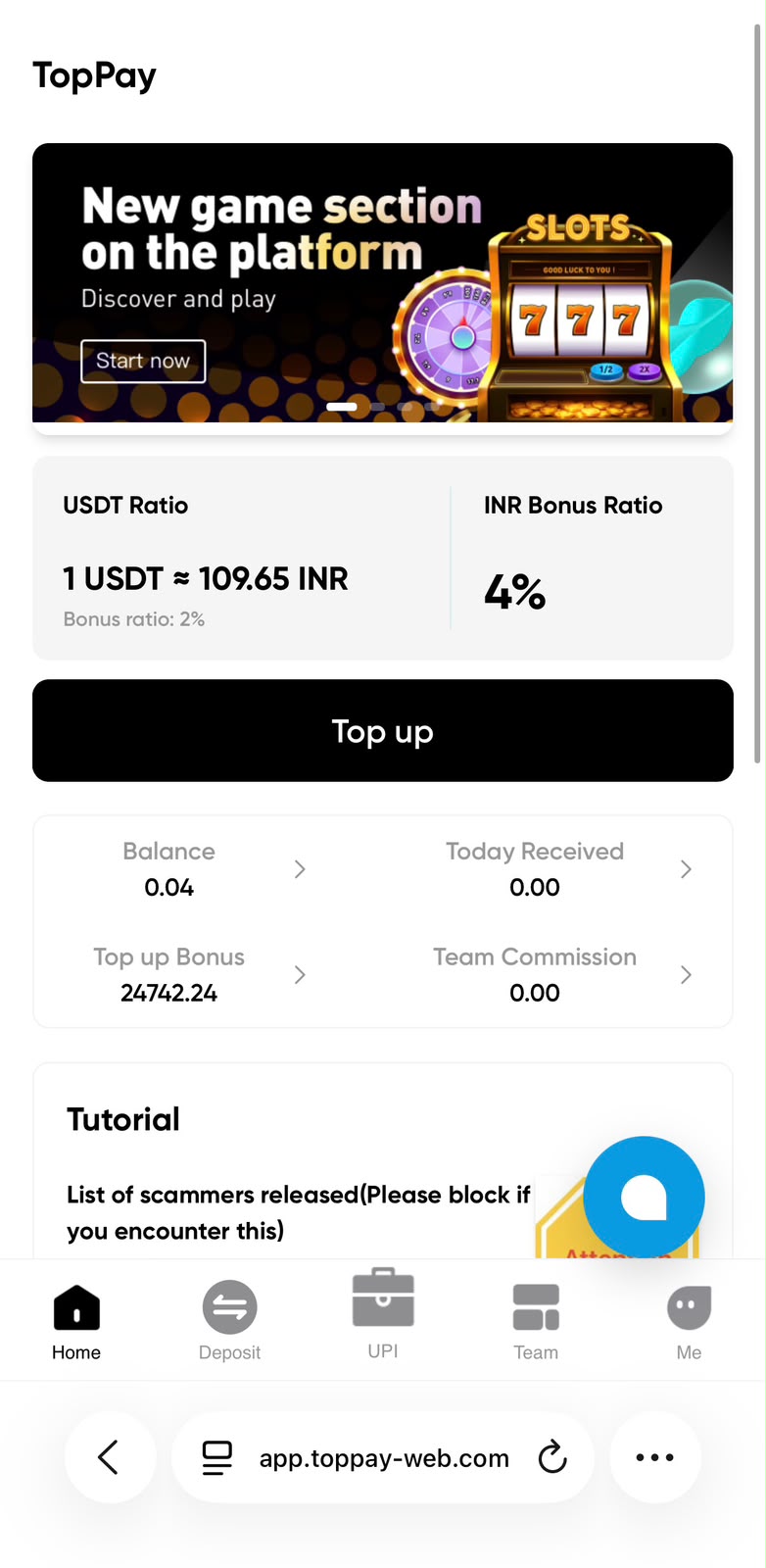
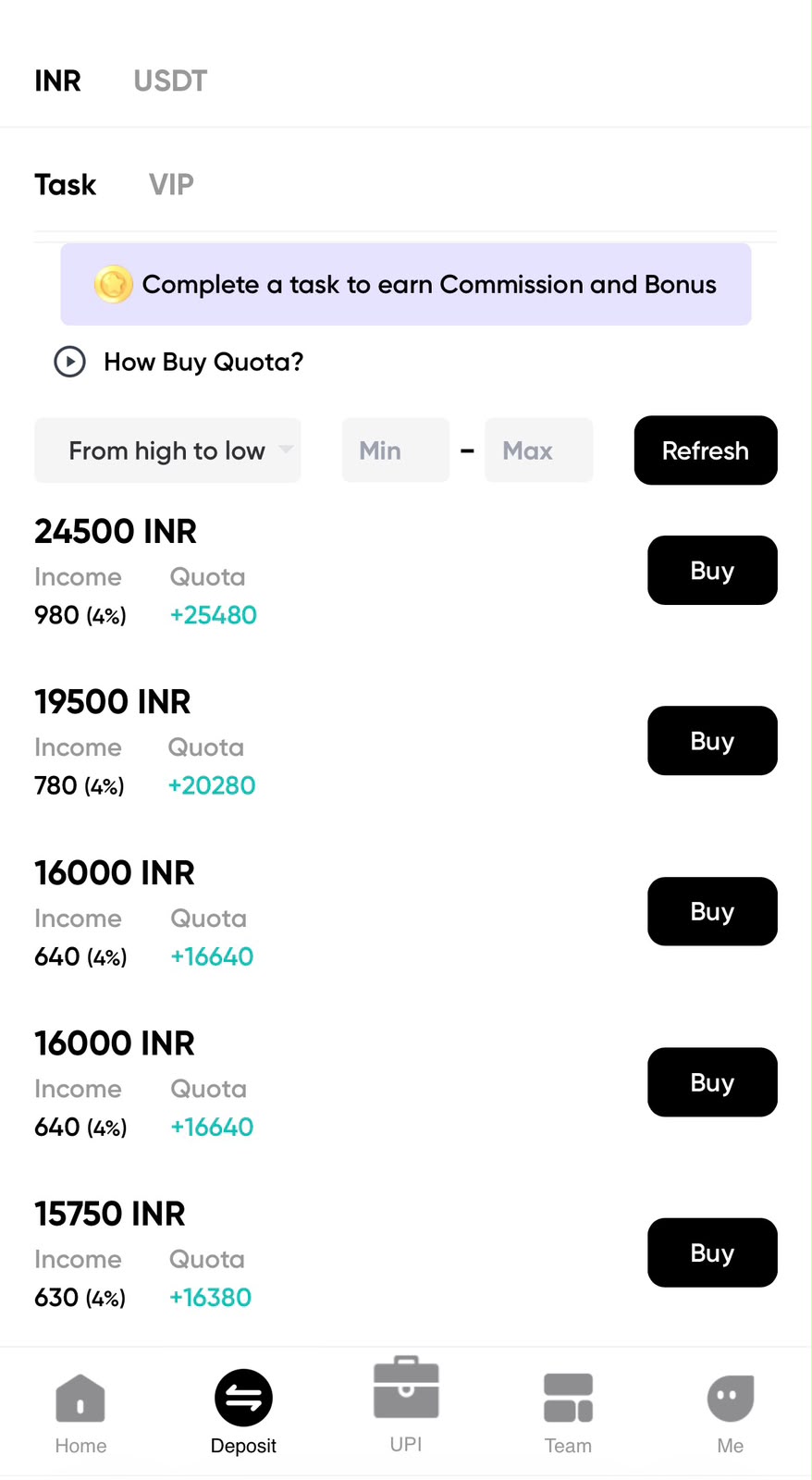
The supplied TopPay UPI screen contains Receive Payment and Send Payment tabs, Available and Unavailable account sections, a How to bind UPI tutorial link and an Add new account button. Two further screenshots show the Bind UPI flow. These images help explain where controls appear, but they are not connected to a live payment account on this public guide.
Receive Payment and Send Payment
The two tabs identify different areas of the UPI interface. Choose the area that matches the task you intend to perform, and read the instructions displayed in your account before continuing. The reminder to keep an account available appears above the availability sections in the supplied Receive Payment screen. Availability is a status reported by the application; it does not guarantee that a particular payment can be completed or that a bank account has passed every required check.
Choose a channel
The first Bind UPI screenshot lists PhonePe, Mobikwik, Paytm, Navi and PaytmBusiness. The progress bar labels Channel, Phone, OTP, Select UPI and Result. Select only a channel that you use and control. A provider appearing in the supplied screenshot is an interface example and does not establish a partnership, current availability or permission to access another person’s account. If a channel is absent from your current screen, use the supported choices shown there.
Phone and OTP steps
After a channel is selected, the next supplied image shows the chosen channel and a phone-number field. Enter your own registered number on the actual account page. The progress bar places OTP after Phone, so the next verification instructions should be reviewed before you proceed. Do not send a code to a support contact or type it into an unrelated website. This guide does not request, verify or store phone numbers and OTPs for the Bind UPI process.
Availability, results and troubleshooting
Review the result shown by the live application after the setup sequence completes. Account counts in the uploaded screenshot belong to that reference image and should not be interpreted as your available accounts. If an account is marked unavailable, read the displayed reason and the current support instructions. Do not repeatedly add the same details or attempt a payment simply to test an uncertain setup. Record the non-sensitive error message and the time so support can identify the issue without receiving your PIN or OTP.
Related TopPay guides
Continue with the TopPay app and screenshot guide, app download instructions, password help or customer care information. The USDT to INR calculator provides an estimate at a chosen rate; confirm current account terms before acting.
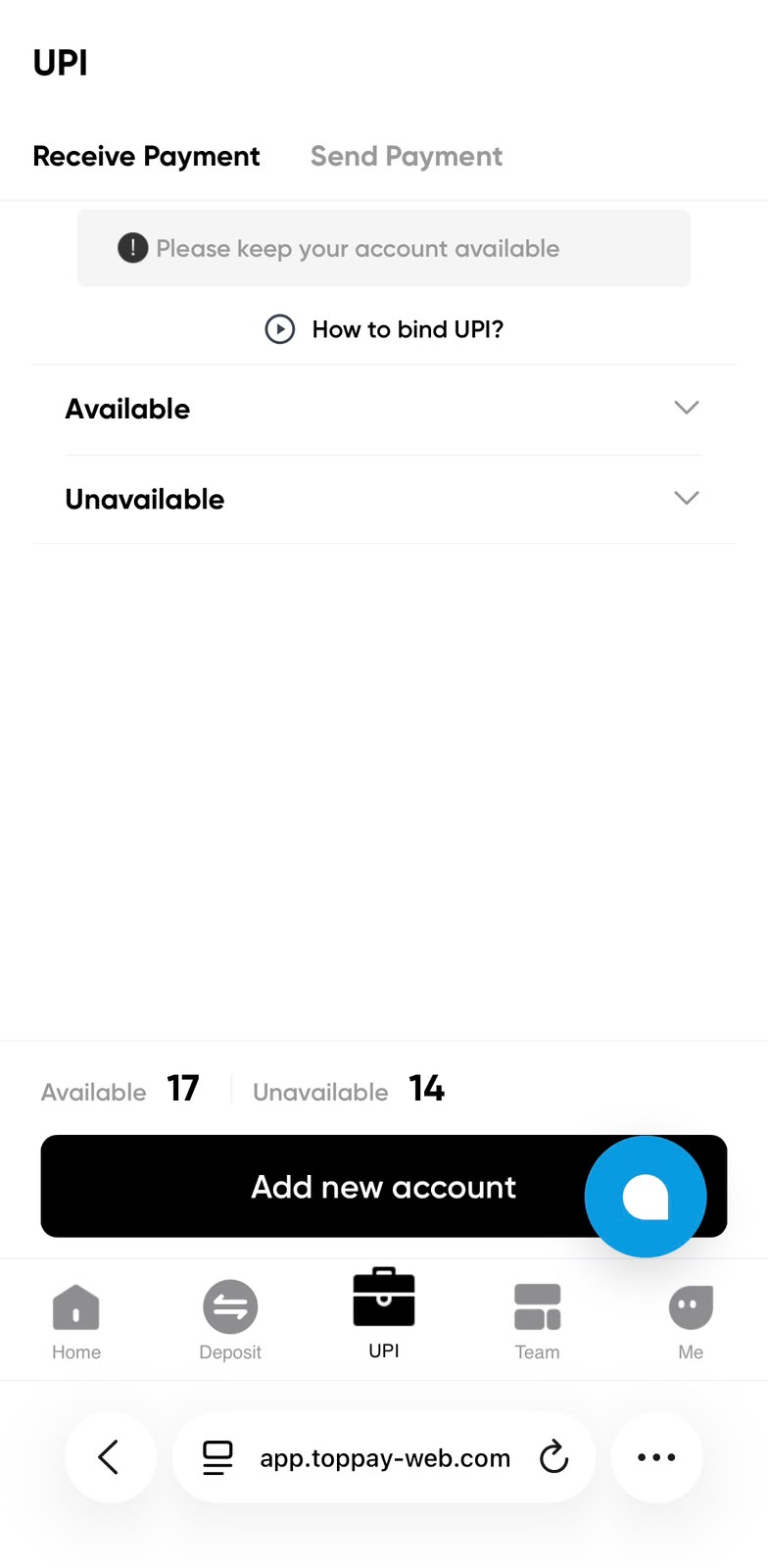
Receive Payment, Send Payment and account availability
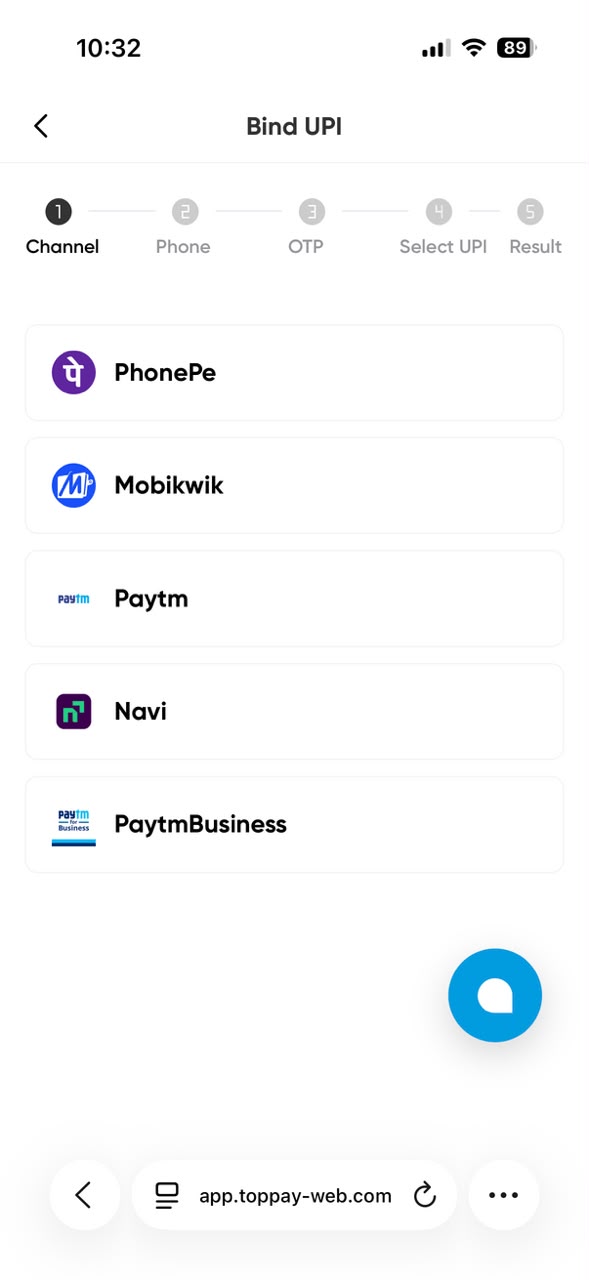
PhonePe, Mobikwik, Paytm, Navi and PaytmBusiness
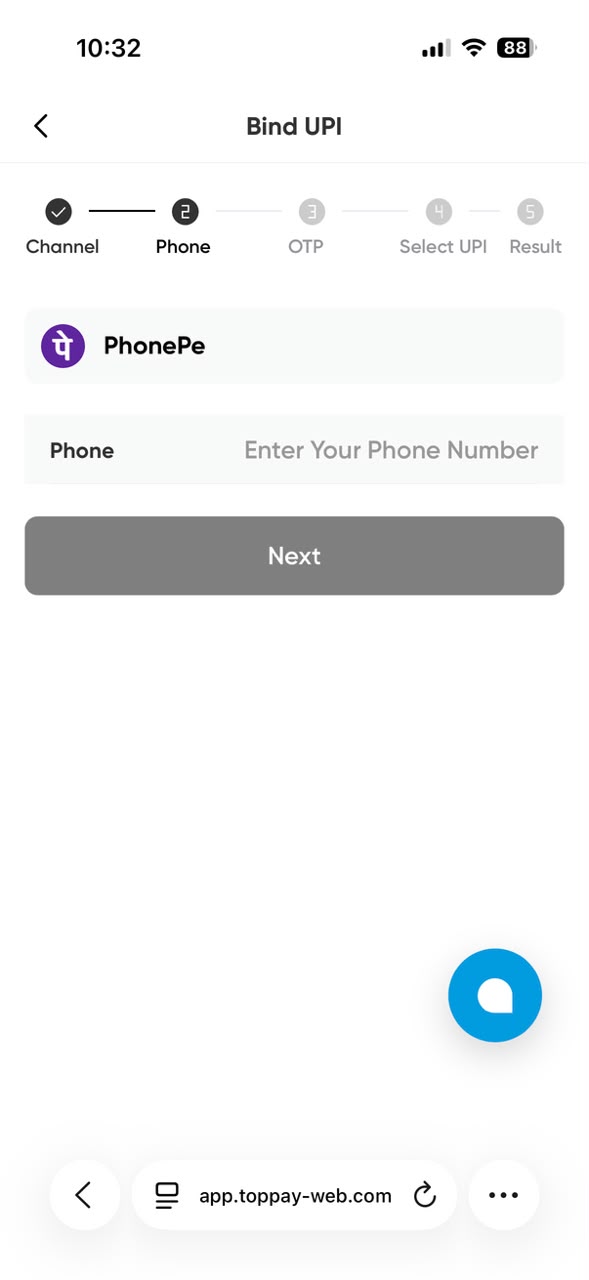
The phone step in the Bind UPI setup flow
Quick answer
TopPay UPI setup guide
The supplied TopPay UPI screen contains Receive Payment and Send Payment tabs, Available and Unavailable account sections, a How to bind UPI tutorial link and an Add new account button. Two further screenshots show the Bind UPI flow. These images help explain where controls appear, but they are not connected to a live payment account on this public guide.
Who is this guide for?
People using the supplied TopPay screens to locate account controls and understand the next step before opening the signed-in service.
Search topics covered
This guide directly covers these related Toppay searches:
- TopPay UPI setup guide
Key checks
- Use your own account and review the current instructions.
- Treat uploaded screen values as reference examples.
- Keep passwords, PINs, OTPs and authenticator keys private.
Common questions
Can I bind a UPI account on this public page?
No. The page explains screenshots of the UPI interface. Account binding happens in the actual signed-in service, following its current verification and provider requirements. The images and captions on this page cannot link a bank account or authorise a payment.
Why does the screenshot show different available counts?
The numbers are account status figures from the supplied reference screen. They are not live statistics and do not describe your account. Check the Available and Unavailable sections in your own signed-in application for its current status and any relevant explanation.
Should I share my UPI PIN with support?
No. Keep payment PINs, MPINs and one-time verification codes private. A guide can explain where a field appears without needing the value entered there. For questions about a provider or bank account, use the relevant provider’s verified support process.
Last updated: 12 October 2026 · Read the disclaimer