
The supplied security references show a Please enter PIN panel in the UPI area and a separate Google Authentication setup screen. The PIN panel has six entry positions. The authenticator setup screen contains instructions to scan a QR code or enter a key manually, followed by a verification-code field and a Bind button. These are distinct account controls with different purposes.
MPIN and account passwords
A PIN prompt should be completed only in the intended account workflow. Do not assume that an MPIN, login password and bank UPI PIN are interchangeable simply because each protects access to a feature. Read the label and current help instructions for the field you are using. This public guide explains the layout and never asks you to enter a PIN into its screenshots. If you do not recognise a prompt, return to the account page and confirm the action that caused it to appear.
Authenticator setup is private
A setup QR code and its manual key contain the information used to enrol an authenticator. Keep both private. They should not appear in public galleries, messages or shared screenshots. The reference image used for this guide conceals those parts when a safe copy is available. Open the current setup screen in your own account and enrol it directly in your authenticator application. Do not scan a QR code from an example image or reuse a setup key supplied by another person.
Verification and binding
After adding the account to an authenticator, follow the current page’s instructions for entering the code and completing Bind. A setup instruction page cannot produce or validate your account’s code. If a code is rejected, check that the selected authenticator account is correct and that your device time is accurate before using the platform’s help options. Do not repeatedly disclose codes to someone who says they can complete the binding process for you. Keep any recovery information in a place you control.
Recovery and support
If you lose access to your authenticator or forget an MPIN, use the recovery procedure offered by the account service. A public screenshot does not show all possible recovery requirements and should not be used as a substitute for that procedure. Prepare a description of the issue without including a secret key, QR payload, password or PIN. Account-specific changes should be completed through the service’s verified recovery flow. Review your signed-in security settings after recovery so you understand which protections are active.
Related TopPay guides
Continue with the TopPay app and screenshot guide, app download instructions, password help or customer care information. The USDT to INR calculator provides an estimate at a chosen rate; confirm current account terms before acting.
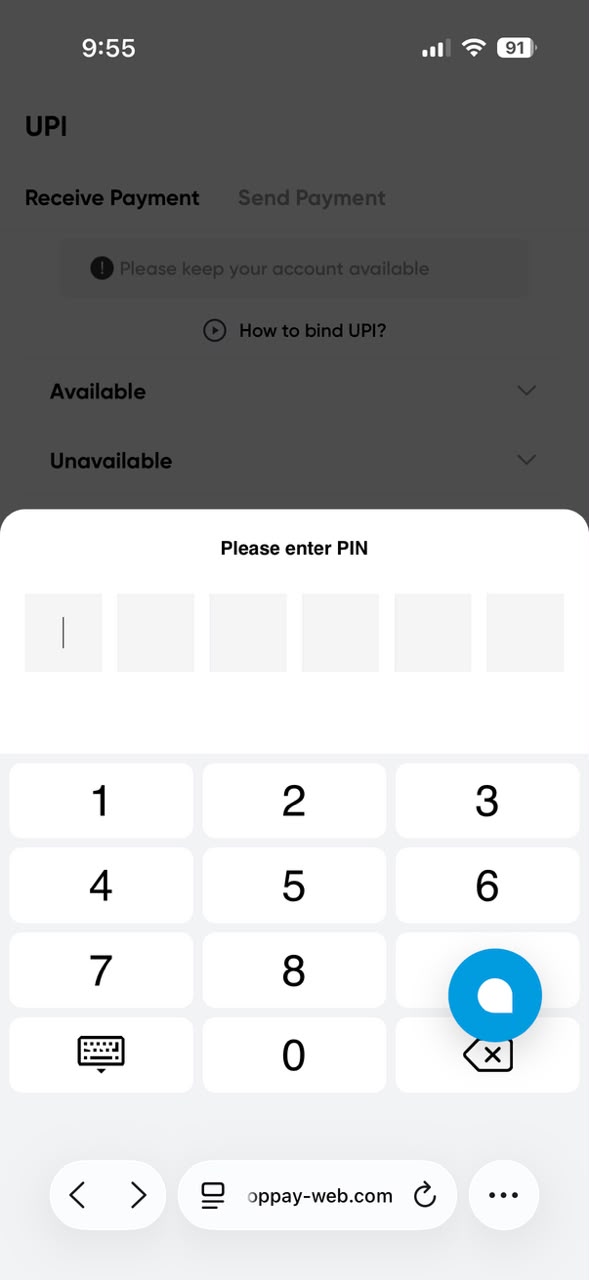
The PIN entry panel in the supplied UPI screen
Quick answer
TopPay MPIN and Google Authentication
The supplied security references show a Please enter PIN panel in the UPI area and a separate Google Authentication setup screen. The PIN panel has six entry positions. The authenticator setup screen contains instructions to scan a QR code or enter a key manually, followed by a verification-code field and a Bind button. These are distinct account controls with different purposes.
Who is this guide for?
People using the supplied TopPay screens to locate account controls and understand the next step before opening the signed-in service.
Search topics covered
This guide directly covers these related Toppay searches:
- TopPay MPIN and Google Authentication
Key checks
- Use your own account and review the current instructions.
- Treat uploaded screen values as reference examples.
- Keep passwords, PINs, OTPs and authenticator keys private.
Common questions
Why is the setup QR or key concealed?
An authenticator setup secret is private account information. A public guide can explain the position and purpose of the controls without publishing the secret. Use only the setup information generated in your own account when enrolling an authenticator.
Can this guide generate my authentication code?
No. The guide does not possess your authenticator secret and cannot produce, receive or validate your account’s verification code. Complete verification directly in the account service and keep all codes private.
Can support ask for a password or MPIN?
A support explanation should not require you to send your login password, MPIN, bank UPI PIN or authenticator setup key through a message. Use verified account recovery options, and describe the non-sensitive error or screen that needs assistance.
Last updated: 12 October 2026 · Read the disclaimer